How to organize work and personal to-do lists
Give each task a clear home without creating more lists than you will review.
Updated 2026-10-11
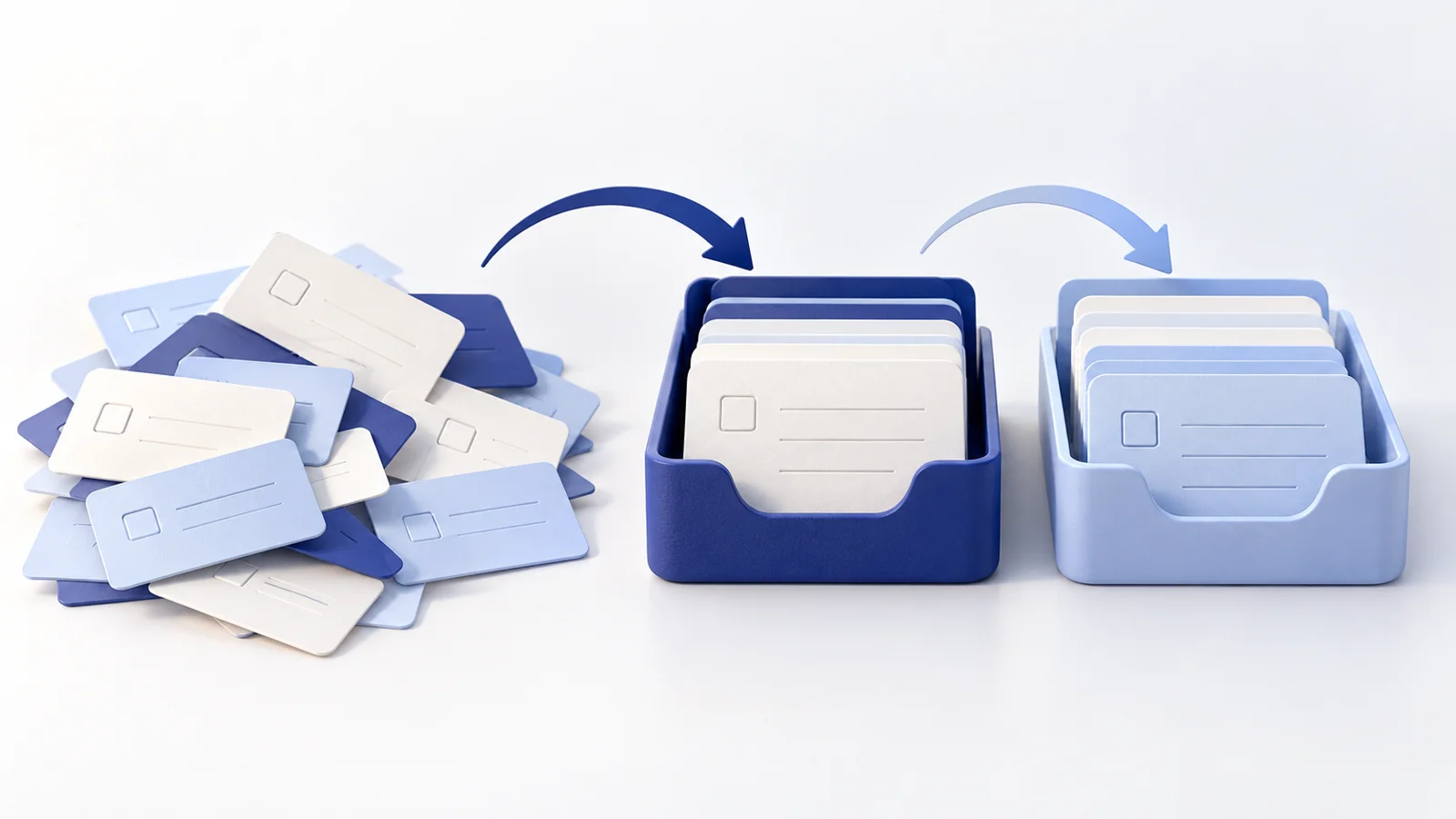
To organize work and personal to-do lists, give each task one main home, use list names that explain what belongs there, and review every active list. Start with broad areas such as Work and Personal. Add a project list when its tasks need to be viewed together.
This guide is about organizing the tasks you keep, rather than choosing today's workload. For that next step, use the separate guide to planning your day with a to-do list.
Start with areas you can distinguish
Use a simple placement rule. Work holds your own work commitments; Personal holds errands and tasks outside work. The names are examples you choose, not preset categories in the extension.
To-Do List for Chrome's feature overview describes multiple customizable lists for projects and areas of life. You can use those lists for this structure without adopting a full project-management system.
Before creating another list, ask what decision it will help you make. A list called "Things" does not tell you much. "Course assignments" identifies a set of tasks you may need to review together. If you cannot explain what belongs in a list, use a clearer name or keep its tasks in a broader area.
Avoid a list for every small errand. Buying printer paper and returning a library book can sit together under Personal if that is where you look for errands.
Sort a mixed list once
The following is an illustrative example of a person's own tasks, not a tested productivity routine or an account of a real user.
| Unsorted task | Suggested home | Context to keep in a note |
|---|---|---|
| Send the revised estimate | Work | Which draft to check before sending |
| Return the library book | Personal | Which book and where to return it |
| Draft the course presentation | Course presentation | Assignment instructions and the working file |
| Buy printer paper | Personal | Required paper size |
The course presentation has its own list because several related tasks may need to stay together. The library return is a single errand, so it does not need a separate list.
Keep one working entry for each task. If you decide to change where it belongs, make sure the old list no longer contains a second active copy. Otherwise, checking off one copy can leave another looking unfinished. This is a manual organizing rule, not a claim that the extension detects duplicates.
Choose a list, task or note
A list groups tasks you want to inspect together. A task describes an action. A note holds the information needed to carry it out.
For example, the course presentation list might contain "Draft the opening slides" and "Send the draft for feedback." The assignment instructions belong in a note. They are context to consult, rather than another action to check off.
If one task needs several steps, use the guide to breaking a task into subtasks. Creating a project list and dividing a task answer different questions: which work belongs together, and what steps finish one item.
The product site documents notes, subtasks and due dates. Record an actual deadline when one exists. A due date does not establish that the extension will send an alert; arrange a timed reminder in a tool that explicitly supports it if you need one.
Keep personal tracking separate from team commitments
Your work list can record your own next actions, such as reviewing a draft or sending a question. If your team uses another system, keep the shared task's status there and use your personal list for the action you are responsible for.
For example, "Review the figures before Tuesday's meeting" can be your personal action while the team's project board remains the place where everyone checks the project status. The two entries serve different purposes. Avoid making two personal copies that both try to track the same completion.
Do not assume a personal browser list provides task sharing or synchronization across devices. The Chrome Web Store listing describes synchronization and integrations as upcoming features. Base your workflow on the features available to you now.
Review every active list
Separating tasks works only if you return to the lists. When you review them, check for completed work, changed deadlines and items whose next action is no longer clear.
The official GTD Weekly Review checklist includes reviewing action lists, waiting-for items and projects. You can borrow the habit of reviewing all your lists without claiming to run the full GTD method.
For a list you no longer use, decide whether it holds unfinished commitments or only reference information. Reorganize your own tasks deliberately; do not remove a list before checking what you still need from it.
Finish by opening each active list and checking that you understand what belongs there. Once the homes are clear, use the daily planning guide to choose which tasks you intend to attempt next.