How to plan your day with a to-do list in Chrome
Separate everything you could do from what you intend to do today. Keep deadlines, appointments and your next task clear.
Updated 2026-10-09
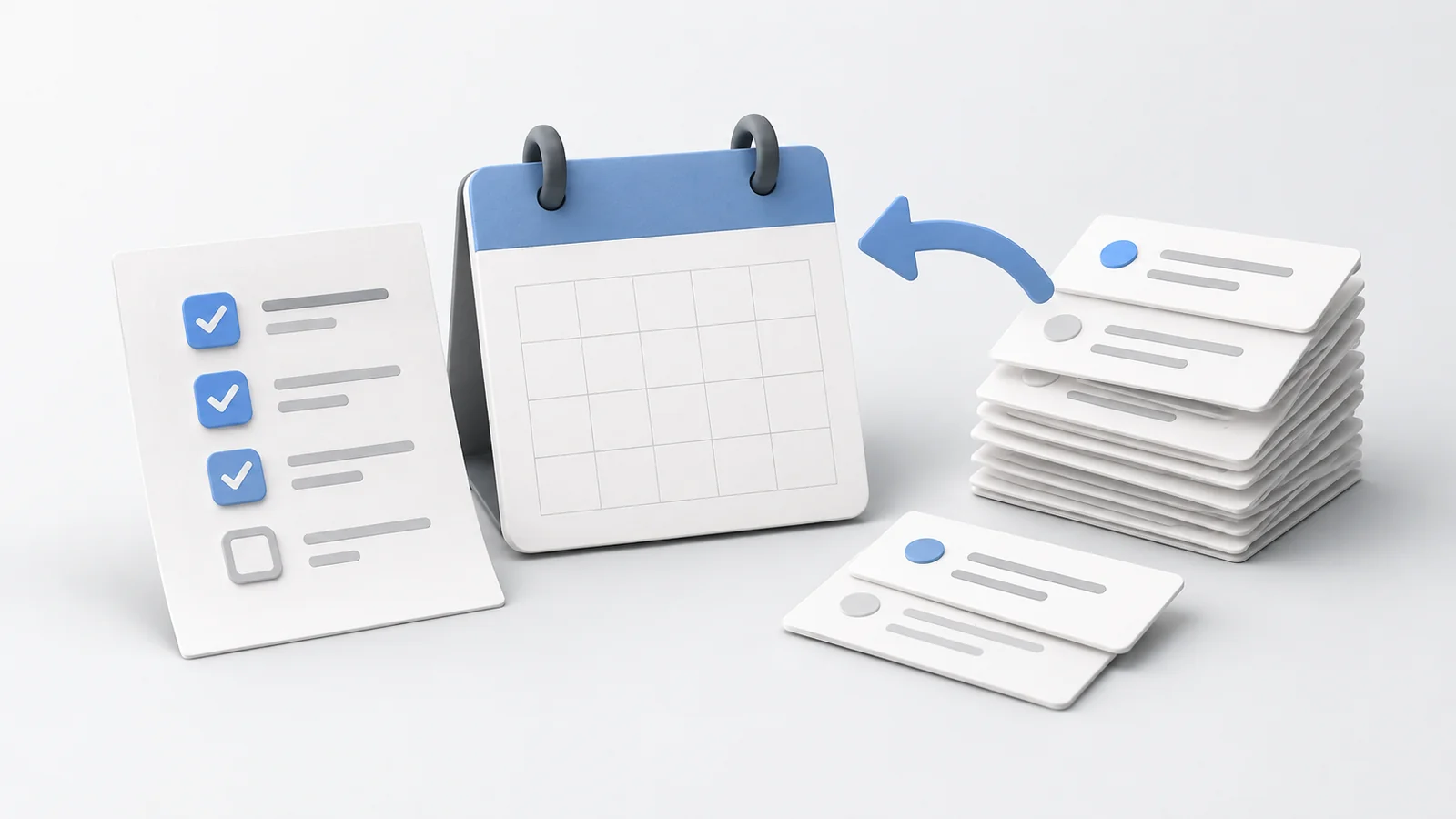
To plan your day with a to-do list, start with the time you have available, then choose the tasks you intend to finish today. Keep the rest in a separate list. A daily list should help you decide what to do next without making every unfinished idea look urgent.
To-Do List for Chrome puts personal task lists on your new tab. Use that view as a place to return to your plan while you work in the browser.
Start with appointments and real deadlines
Look at meetings, classes or other fixed commitments first. A list of tasks does not tell you how much of the day those appointments already occupy.
Then find tasks with actual deadlines. Keep the due date tied to the commitment rather than assigning today's date to every task you hope to attempt. Otherwise, due dates can stop distinguishing real deadlines from planned work.
If you need to reserve a time slot, put it in the calendar you already use. Todoist's time-blocking guide distinguishes choosing tasks from allocating periods of the day to them. The plan below uses that distinction without requiring a full time-blocking system.
Separate your task inventory from today's plan
Write down unfinished work in a longer list, then select what belongs in today's plan. The extension's product page describes multiple personal lists, notes and due dates, which you can use to keep these two purposes separate.
For example, a student might have an inventory containing an essay, reading, a library visit and a presentation due next week. Today's plan could contain reading the assigned chapter and drafting the essay's opening section. That is an illustrative planning example, not a claim about how much work someone can complete.
Choose names for the lists that make their purpose obvious. You might use Today and Later, but those are suggested names, not built-in features you must find in the interface.
Put the next action near the top
Order today's tasks so you can identify what to start when you have a free work period. The Chrome Web Store listing documents dragging tasks to reorder them.
Use a note for the detail you will otherwise have to rediscover: which file to open, the section to read or the question to answer. A note can carry context while the task name stays short.
If a task contains several distinct actions, use a subtask for the first one. The separate guide to breaking tasks into subtasks covers that process. Here the decision is which task belongs in today's plan and where it sits in the order.
Leave room for work that arrives during the day
When a new request appears, compare it with the plan before adding it. Does it have to happen today? If so, decide which planned task you will postpone. If it can wait, capture it in the longer list.
Revise today's plan when the work changes. If you add a new task, reconsider what can reasonably fit alongside it.
Open a new tab when you need to check the next task. For installation and Chrome's new-tab setting, use the new-tab setup guide.
Review unfinished tasks before tomorrow
At the end of the day, mark completed work and inspect what remains. Carry a task forward only after deciding that it still deserves a place in tomorrow's plan. Move work that can wait back to the longer list and update its note if the next action has changed.
Keep actual deadlines intact when rescheduling your intended work. This is a personal planning workflow; it does not assume automatic recurring tasks, notifications or calendar synchronization in the extension.